

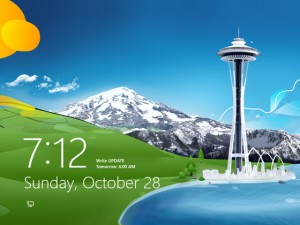
 There's a lock screen that appears when Windows 8 starts up. I think it's designed with tablets in mind, but if you're using a non-touchscreen PC, you have to press a button or click the screen with the mouse to unlock it, which is a hassle. On top of that, the futuristic DTP scene image doesn't suit my taste, and frankly, it looks ugly.
It seems that while you can change this display through normal settings, you can't turn it off. Therefore, I changed the following settings to automatically skip this lock screen.
● How to skip the lock screen that appears when Windows 8 starts up

1. Press the [Windows logo] key and the [R] key simultaneously on the bottom left of your keyboard, type gpedit.msc, and click [OK].

2. The "Local Group Policy Editor" will launch. In the left pane tree, navigate to [Computer Configuration] - [Administrative Templates] - [Control Panel] - [Personalization], and then double-click "Never show the lock screen" in the right pane.

3. The "Do not show lock screen" dialog box will open. Selecting [○ Enable] here will prevent the lock screen from being displayed. Selecting [○ Not Configured] or [○ Disabled] will display the lock screen. Click [OK].
After completing the above steps and restarting your device, the lock screen should no longer appear.