
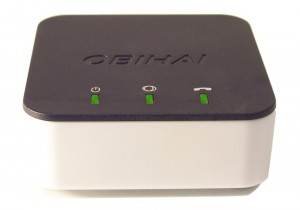
 The OBi200, released just last month, is an ultra-miniature ATA (Automatic Telephony Agent) measuring approximately 7cm x 7cm x 2.5cm, small enough to fit in the palm of your hand. I've configured it to use NTT Hikari Denwa (fiber optic phone service), FUSION IP-PHONE SMART, and Google Voice's US phone numbers, creating a very convenient and cost-effective phone system.
Incidentally, this time we won't be using any devices other than the OBi200. We won't be using an IPPBX either. It's a simple and quick location-free phone system!
All you need is an OBi200, a smartphone, an internet connection, a regular analog telephone, and a PC. Incidentally, if you don't have a PC, a smartphone will do. Also, since the Android version of the application seems to be more stable at the moment, an Android device is recommended if possible.
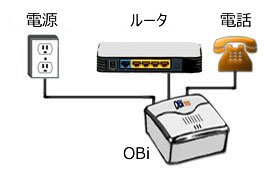
1. First, connect the OBi200 to the internet using a LAN cable. Then, connect a standard home telephone and turn on the power.
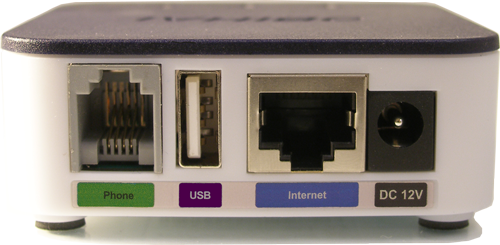
Initially, the LED on the OBi unit will blink red, but after a while it will turn green. That's all for the connection setup. It's easy.
2. Next, configure the device. You will configure OBi on your PC, but there is also a dedicated configuration portal site called OBiTALK. You will register the device and phone-related information there, but we will omit the details of this process here.
This part inevitably requires some knowledge. Therefore, tciskFACTORY provides pre-configured settings. We can also accept requests for adding, changing, or removing registered phone numbers after purchase. If you purchase a pre-configured device, you can skip steps 2 through 4 and complete the process in step 5.
3. Once you have created an OBiTALK account, the first step is to register the OBi200 device. Click "Add Device" on the Dashboard and then follow the on-screen instructions.

4. Next, configure the Service Provider (SP). Despite its small size, the OBi200 can accommodate four SPs. Click the gear-shaped configuration icon to the right of SP1 through SP4, and then follow the on-screen instructions. It's not difficult as long as you have the SP information.
I've set up NTT Hikari Phone's extension in SP2, FUSION IP-PHONE SMART in SP3, Google Voice in SP4, and registered the inexpensive ITSP 12VOIP in SP1. With this setup, the OBi200 can make and receive calls using the NTT Hikari Phone, FUSION SMART, and Google Voice phone numbers. Plus, when making outgoing calls, I can use 12VOIP, which sometimes offers free calls, to keep costs down.
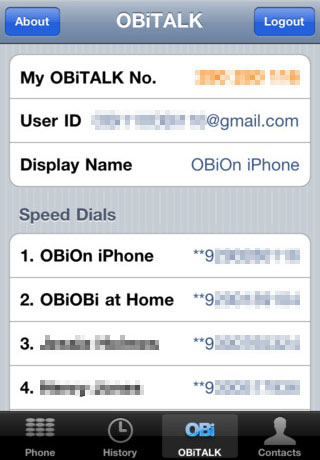 5. Next is setting up your smartphone. This is actually very simple. First, download the "OBiON" app to your device. It's freeware. Then, simply log in using your login ID and password. This will make the OBi200 the gateway to your smartphone.
Setup complete. Now, let's try making a call from your smartphone.
First, call the OBi200 gateway. If you enter the number directly, it will be "**9XXXXXXXXX" (where X is the OBIi number printed on the back of the OBi200 unit), but it is already displayed in Speed Dials, so you can also call by tapping there.
An automated attendant provides guidance.
“Welcome to OBi Attendant. Main menu; Press 1 to continue this call, press 2 to make a new call, press 3 to enter a called back number.”
If you press 1, the phone connected to the OBi200 will be dialed.
Pressing 2 will trigger a guidance message: ”Enter number followed by the # key.” You enter a phone number, and the number you enter here will be called out from the default SP (Service Pack) among SP1 to SP4 on the OBi200. If you want to choose which service to call out from, first press the SP number followed by * twice. For example, in my settings, "**1XXXXXXXXX" will call from 12VOIP, "**2XXXXXXXXX" will call from NTT Hikari Phone, "**3XXXXXXXXX" will call from FUSION IP-PHONE SMART, and "**4XXXXXXXXX" will call from Google Voice. By selecting in this way, you can choose which ITSP to use for making a call.
Pressing 3 will trigger the same guidance: ”Enter number followed by the # key.” Enter the phone number you want to be called back and press # at the end. If you hang up the phone, the OBi200 will call you back at the phone number you entered earlier.
I've given a brief overview of the specifications.
Even so, it's amazing that you can do all this with just one OBi unit acting as a gateway.