

In recent weeks, a series of unauthorized web access incidents have come to light, starting with Park24 Group's Times Car service and including a large-scale security incident in which GMO Internet was subjected to a cyberattack.
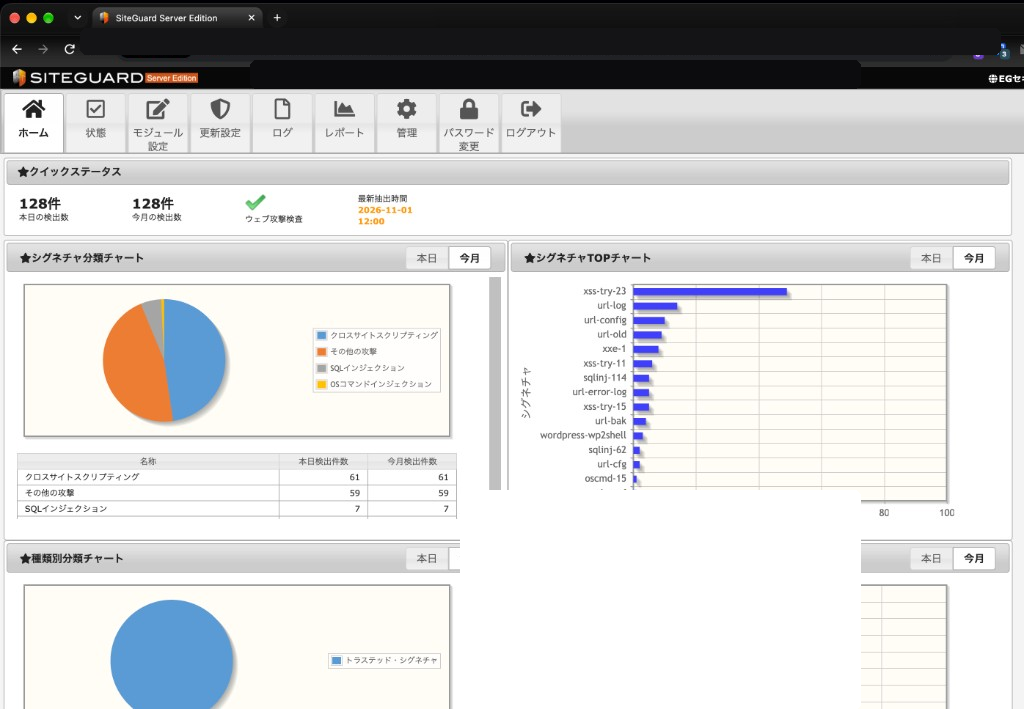
During one of those weeks, I took a look at the recent logs for SiteGuard Lite on my Sakura VPS. What I found were requests directly accessing the names of configuration files and environment variable files, requests attempting to traverse directories, attacks targeting other products not running on this server, and unfamiliar HTTP methods.
In the lines I checked, the verdict was BLOCK. The aim was to reduce entry points, so that traffic currently stopped in front of the app would not spread if it got through.
The environment is Sakura VPS, RHEL-based, Apache httpd, firewalld, PHP (php-fpm), and SiteGuard Lite. Multiple websites, including WordPress and EC-CUBE, reside on it. The following hostnames and IP addresses are all examples.
How to read logs
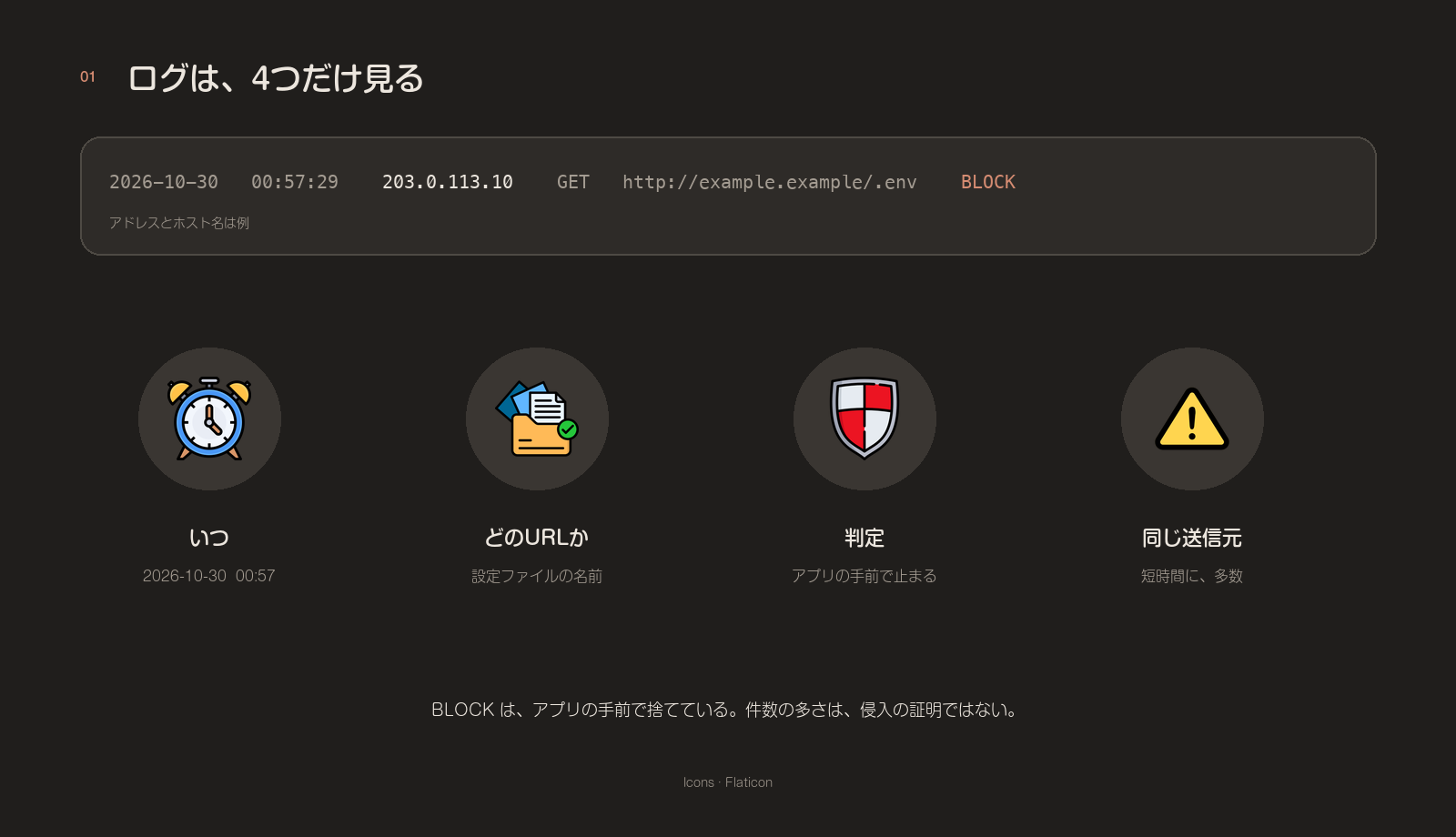
From one line, I kept only these four things.
- When it arrived
- What type of URL is it? (e.g., configuration file name, administrative path, unusually long query, etc.)
- Is the judgment BLOCK, or is it just detection and letting it through?
- How many requests came from the same source in a short time
A "BLOCK" status means the request did not reach the application. A high number of BLOCK requests indicates active searching, not proof of intrusion.
This article will distinguish between different stopping methods using the following three terms.
- BLOCK ...SiteGuard rejects it before it reaches the app.
- 403 ...Apache rejects the request.
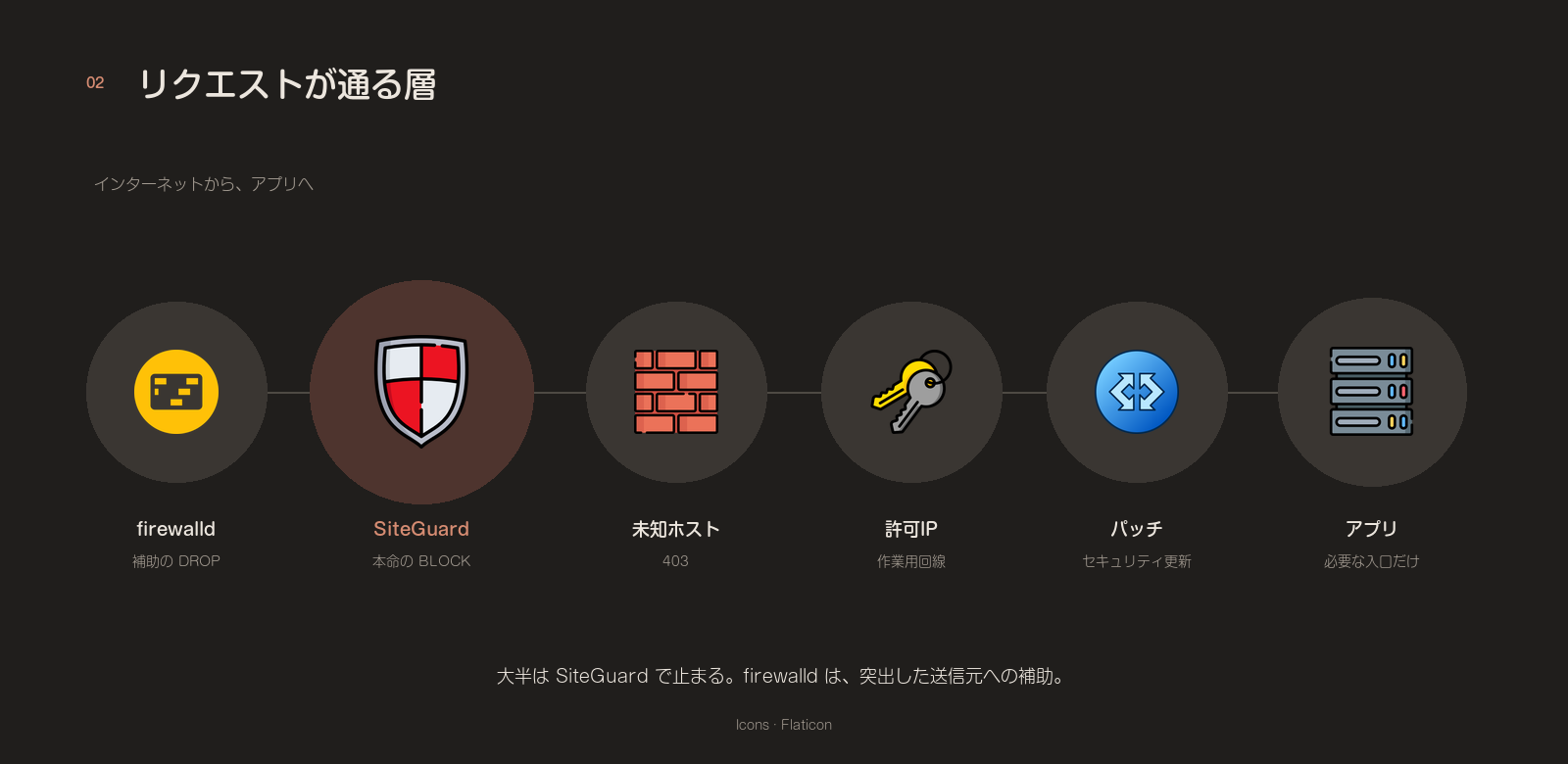
- DROP ...firewalld drops the packet, so from the sender it looks as if nothing arrived
Policy
The primary method will be using SiteGuard's official signature. The IP list is kept as a supplement. Since the source changes daily, manually tracking the list will not be the main countermeasure.
The actions taken were in the following order, starting with those closest to the log.
- Close files that do not need to be made public.
- Make unused hostnames invisible from the outside.
- Put the app on a security release in its own product line, and limit the app admin screen to the work network
- Remove the version string from the response header.
- For a while, automatically keep away IPs that repeat the same failures
- Automatically apply only OS security updates without requiring a restart.
- DROP only the sources that stand out, as a supplement
- Restrict SiteGuard's management port to only the work line.
1. Close information that had been left exposed.
Requesting the server default document root by raw IP showed that info.php was returning 200. The body was phpinfo, listing the PHP version, paths, and loaded modules. It had been left there for diagnostics, so I moved the file and returned 403 for that path. I also changed the default document root so it does not show its contents.
I also checked each site's .env and web.config from the outside, using only the status code. All were 403 or 404, and no body was returned. That confirmed they were closed. I added no further deny rule.
Only the HTTP methods necessary for the site were retained. Methods not used for normal browsing or form submission are rejected by Apache.
2. Unused sites and hosts with only a name.
For sites that weren't functioning, I decommissioned them along with their document roots, virtual hosts, and unnecessary databases. The databases and users of the sites I kept were not touched.
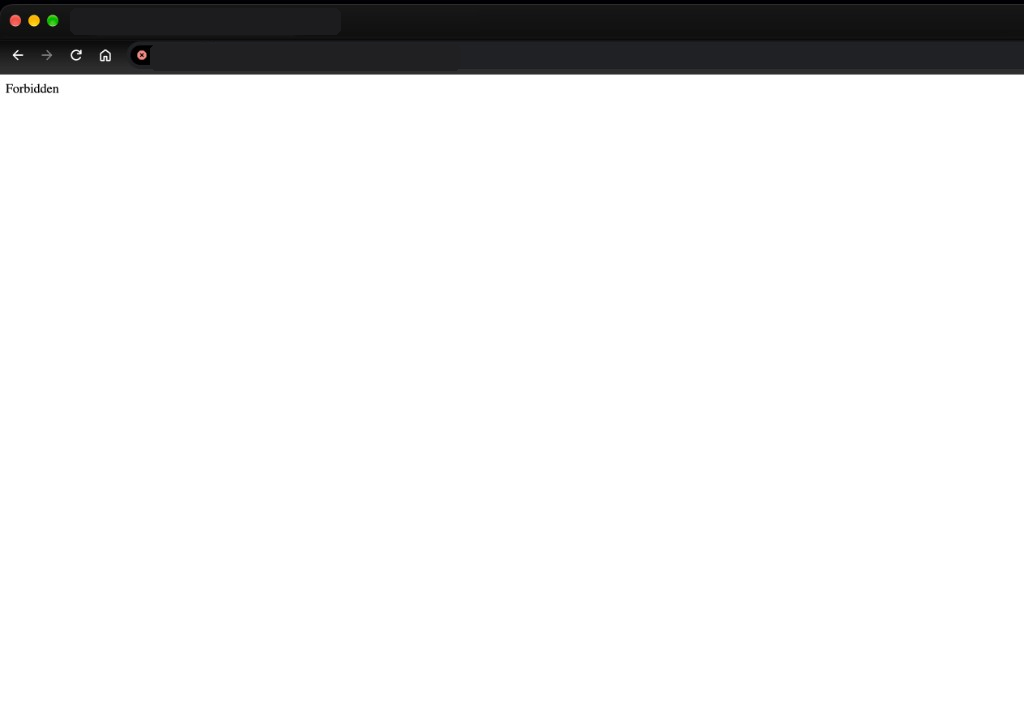
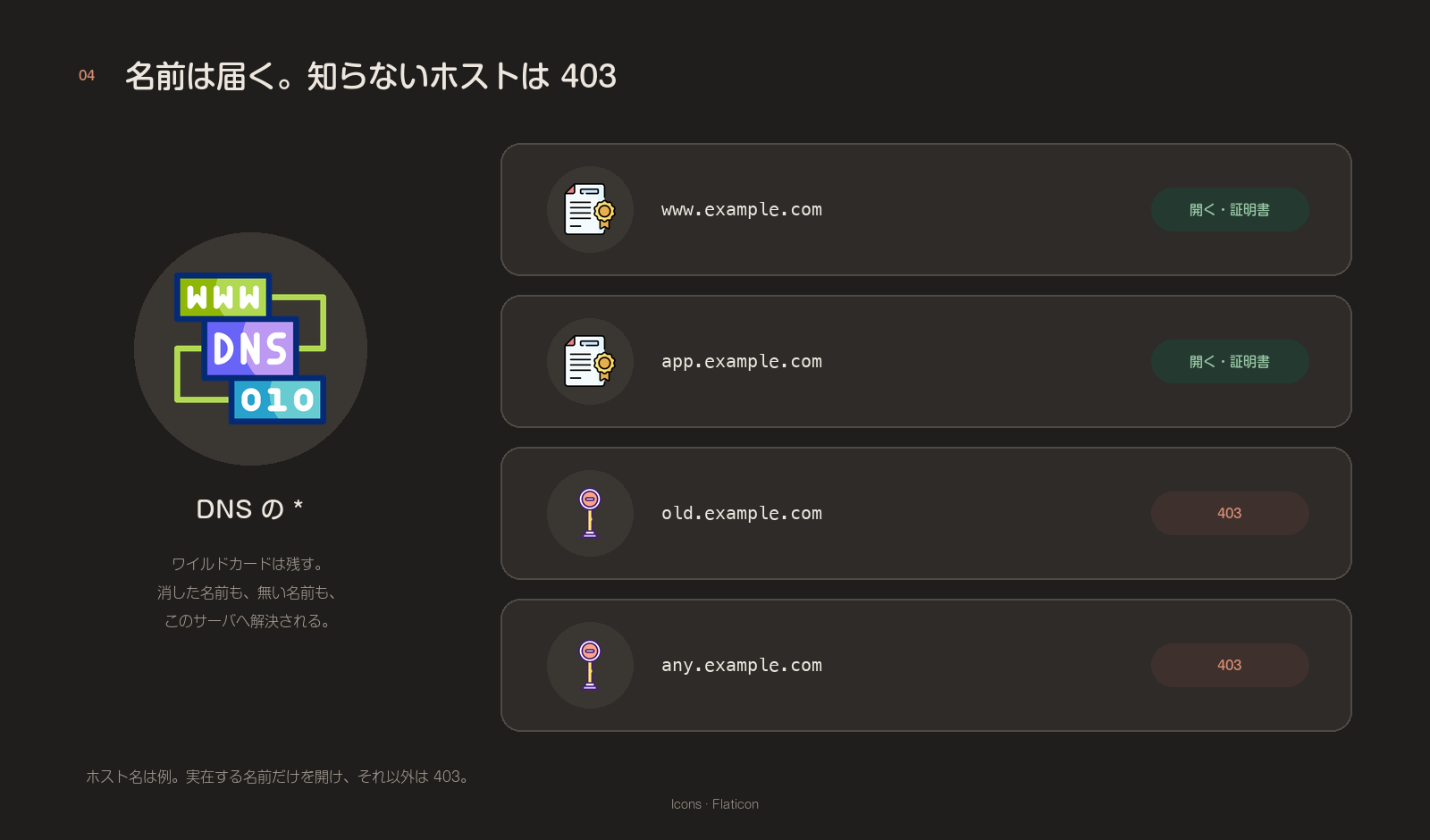
I kept the DNS wildcard.* As long as this exists, deleted names and non-existent subdomains will still be resolved to this server. Therefore, HTTPS connections from hosts other than those I know will result in a 403 error. This is to prevent unknown names from responding with the server's default certificate.
Before and after the work, I checked that the public sites returned HTTP 200, and checked the certificate issuer and expiry.
3. App-side entry point
EC-CUBE was moved to a security release in its own product line. The change was the multi-factor authentication around the admin screen. I put production into a short maintenance window, took a database dump, applied the official diff, updated the schema, then ended maintenance. I checked the version string, related files, and the front and admin login responses, then called it done. Customizations such as addresses and invoices stayed.
WordPress core and plugins were already current at the time. The only addition was rejecting xmlrpc.php. That unused path is an easy route for pingbacks and brute force, so I returned 403.
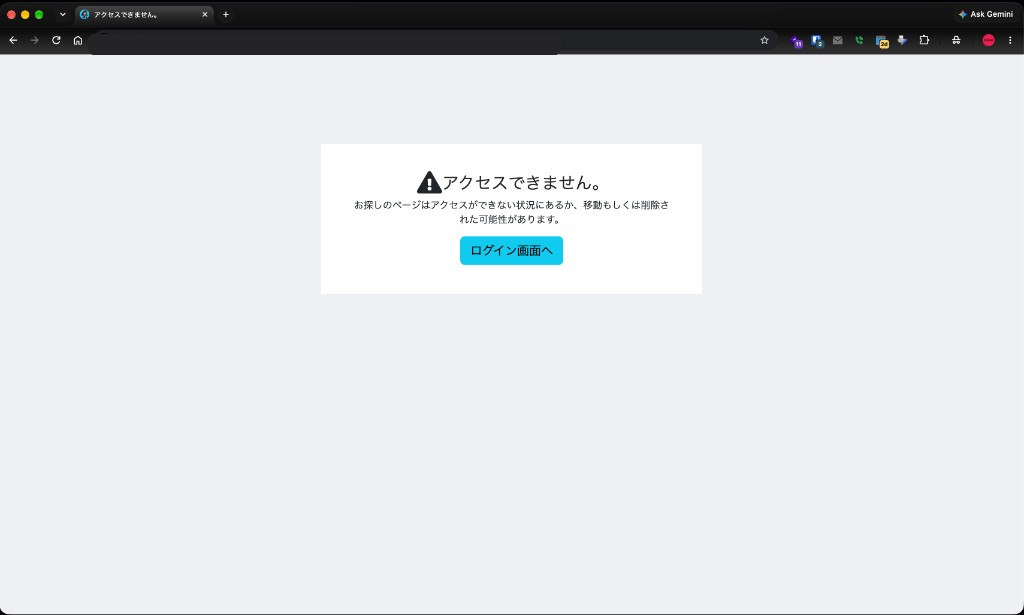
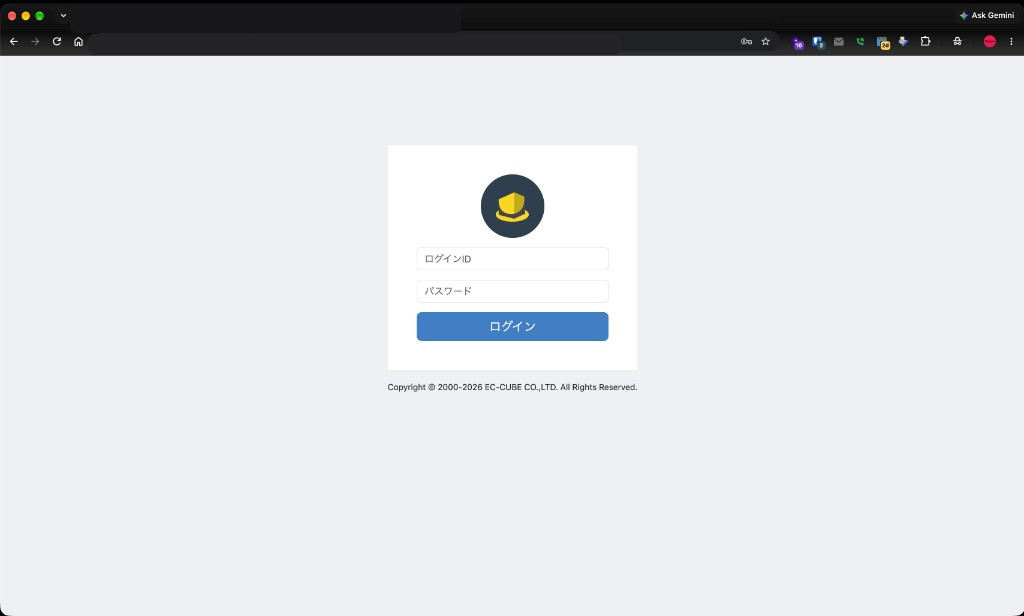
The EC-CUBE admin panel had an empty field for allowed connections. I entered only the IP address of my work network here. On days when I connect from a different network, I add that IP address and clear the cache.
I restricted access to the temporary PHP file I had been using for work, which was previously left unauthenticated, to only the same network connection. Although it wasn't a file that executed commands, it allowed me to see its internal paths and the progress of the work. I deleted it once I was finished.
4. Do not include the version in the header.
By default, PHP adds X-Powered-By: PHP/x.x.x to the response headers.expose_php=Off. After reloading php-fpm, this header disappears. The page does not change. This does not close the vulnerability. It only makes the version harder to guess.
expose_php = Off5. Leave the repetition to fail2ban.
I installed fail2ban and set firewalld to DROP, for a while, IPs that keep failing or probing in the logs. I enabled these six jails.
| Jail | What it watches |
|---|---|
| sshd | SSH login failed |
| apache-auth | Failures such as Basic Authentication |
| apache-badbots | Known malicious crawlers |
| apache-noscript | Probing for scripts that do not exist |
| apache-overflows | Unusually long URLs, etc. |
| recidive | Block IP addresses that have been blocked multiple times for an extended period. |
I added the work network to ignoreip so my own actions would not lock me out.
A side effect is that legitimate users can be cut off for a while. A company or carrier egress IP is sometimes shared with unrelated people. After enabling it, use fail2ban-client status to check the counts, and loosen or remove a jail that looks wrong.
01
🚪
Few failures
Still let it through
02
⚠️
Repeat in a short period of time
The same sender continues
03
🔒
Close for a while
Temporarily DROP
6. Automate only the OS security updates.
dnf-automatic and apply only security updates automatically. I do not reboot automatically after a kernel update. The scope is narrower than updating everything, but it avoids an unplanned reboot taking the site down.
7. Block frequently occurring IP addresses as a backup.
I added only the source that stood out in the most recent logs to both SiteGuard's connection rejection and firewalld's DROP command. I didn't add country-specific rejections because there are legitimate access attempts from overseas.
This is an initial step. Even if the same address continues to appear in the log afterward, if it's already blocked, we don't manually move each entry to the DROP list. Our primary focus remains on the official signature and its automatic updates. Even within the same campaign, the sender changes frequently.
We don't blindly apply the publicly available list of notorious IP addresses. Older addresses and shared cloud ranges can sometimes inadvertently include legitimate communications. Manually adding only those entries that clearly indicate a scan from our own server logs is sufficient.
8. SiteGuard's management port is only for the work line.
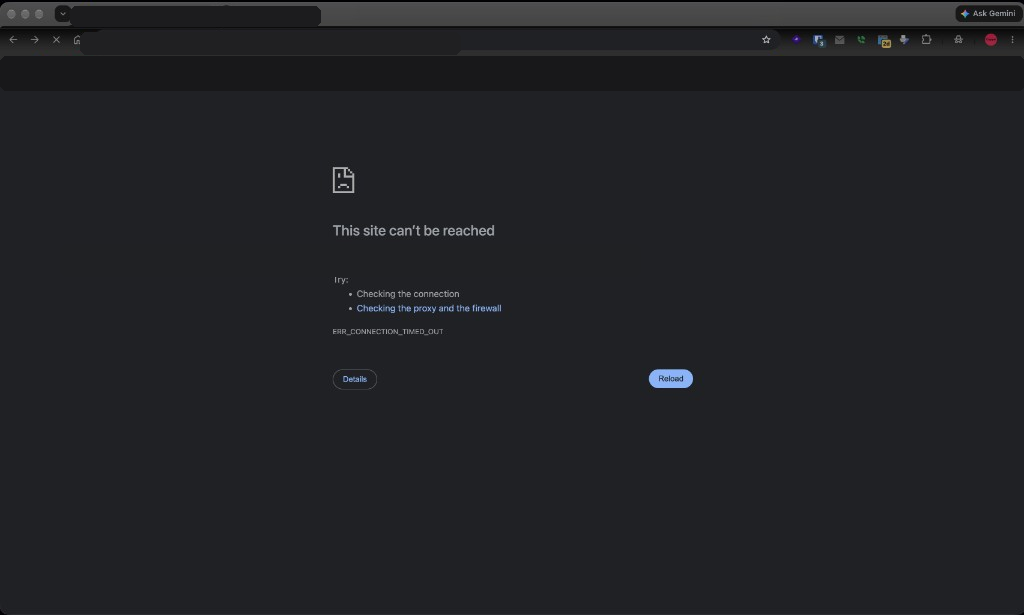
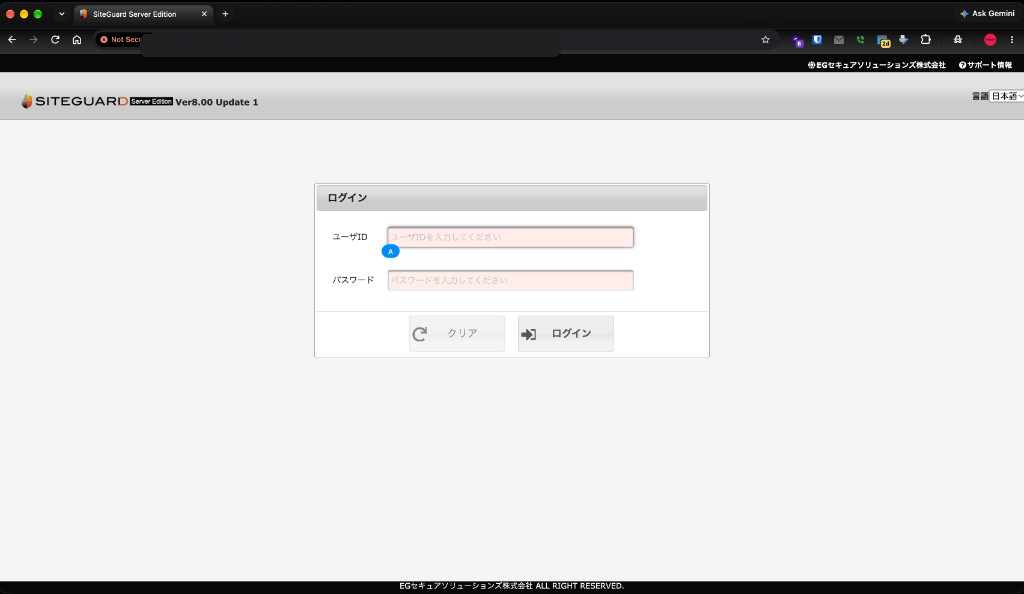
The SiteGuard admin screen listens on port 9443. It is open only to the work network and localhost. Connections from anywhere else time out. Ports 80 and 443 of the public site are unchanged.
This screen uses a different certificate than the one used by the production site's Let's Encrypt. If you open it by directly specifying the IP address, your browser will display a certificate warning. You can open it by proceeding to the details from an authorized connection.
From elsewhere, reach it with an SSH local forward.
ssh -L 9443:127.0.0.1:9443 user@your-serverIn a local browser, open https://127.0.0.1:9443/ . A certificate warning is likely. If the work-network IP changes, update the firewalld allow rule. Forgetting that locks out only you.
Left for later
The following three were considered but ultimately rejected.
Additional IPv6 restrictions
This VPS did not have an IPv6 address at the time. The DNS entry AAAA remained. The name resolved to IPv6, but the server did not respond in IPv6. I decided that it would be sufficient to simply ensure that all but SSH, HTTP, and HTTPS were closed via firewalld just before enabling the address.
Automatic DROP based on detection logs
This mechanism sends requests that the WAF has already rejected to firewalld based on their number. It is prone to involving shared IPs and cloud addresses for payment and APIs. Skipping the notification stage and automatically blocking them would have significant side effects given the current volume of requests.
Constantly synchronize attack IP addresses with multiple other VPS servers.
The same campaign can hit several servers around the same time. Sources are often disposable, and a mistaken drop spreads to every server. It is easier to let SiteGuard BLOCK on each server, and to add by hand only what stands out in that server's log.
Done for this round
What went in
- Files that do not need to be made public and unknown hosts have been closed.
- I updated the app and made the management screen accessible only through the work network.
- I installed fail2ban and the OS security updates.
- The admin port, and only the sources that stood out, were dropped as a supplement.
When a reason appears
Add it then
- The day to enable IPv6
- A day when the same source still surges after it has been blocked
- The day when only the production management URL is being attacked repeatedly
- A day when the same campaign stands out at once on several other servers
Leave it so that it can be restored.
I copied the configuration files I was going to modify, noting the date and time, before starting the work. When updating the application, I left a database dump in a separate directory.
The public site will be checked for the following changes each time they are made.
- Whether the homepage returns HTTP 200
- Certificate issuer and expiration date
- Will the app's management screen only open from authorized connections?
- Is the environment variable file still showing 403 or 404?
What to watch afterward
I've finished the implementation for now. I'm continuing with the following three things:
- If the IP address of your work network changes, update the SiteGuard management port and the permissions for the app's management screen.
- Check SiteGuard's detections once a week. See if any new types of URLs have been added.
- If the production admin URL keeps being targeted, the same IP surges after a DROP, or real harm appears, add something then.
The sources that stood out the first time are included. Everything else is left to the official signature BLOCK. I do not copy busy log lines over by hand each time.
Checklist
The steps to take when transferring to another VPS are as follows.
- Check that the log you checked is judged as BLOCK.
- Stop exposing phpinfo and the standard document root.
- The status code confirms that the environment variable file cannot be read from outside.
- Delete unused hosts and set unknown hosts to 403 for wildcard access.
- Move the app to a security release in its own product line, and reject the unused
xmlrpc.php. - Enter the allowed IP addresses in the app's management screen.
expose_php=Off.- Install fail2ban and exclude the work line from being targeted.
- The OS will only have automatic security updates, and restarts will remain manual.
- Only add the most prominent sources to SiteGuard and firewalld.
- SiteGuard's management ports should be limited to the work network and localhost.
- After the changes are reflected, check the response and certificates on the public site.
It's impossible to eliminate entry points entirely. New sources, unknown attacks, and changes in operational lines will remain. The benefit of this approach lies in reducing the amount of material available for reconnaissance and unused entry points, and mitigating the impact of any slip-throughs through updates and reduced privileges.