
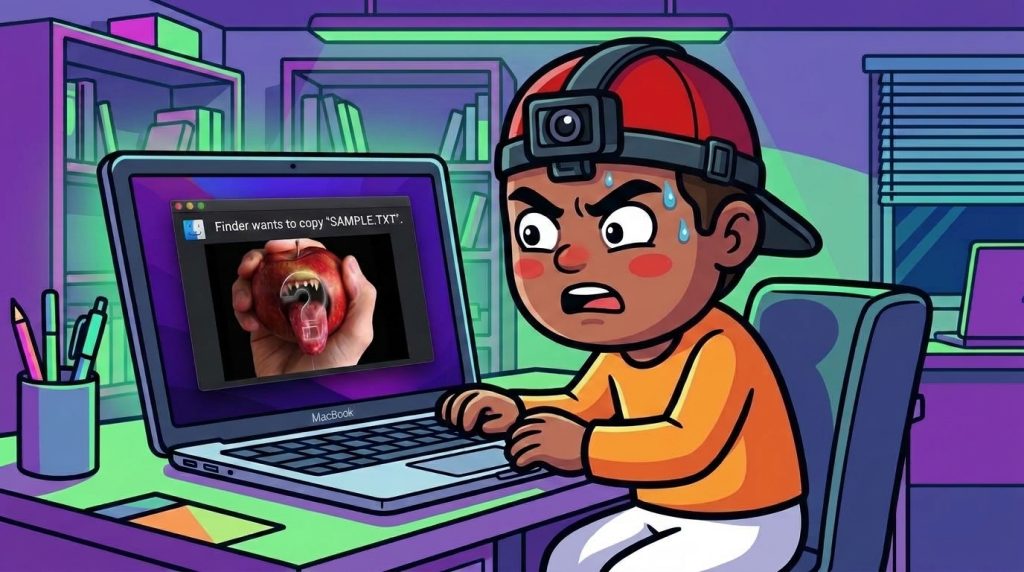
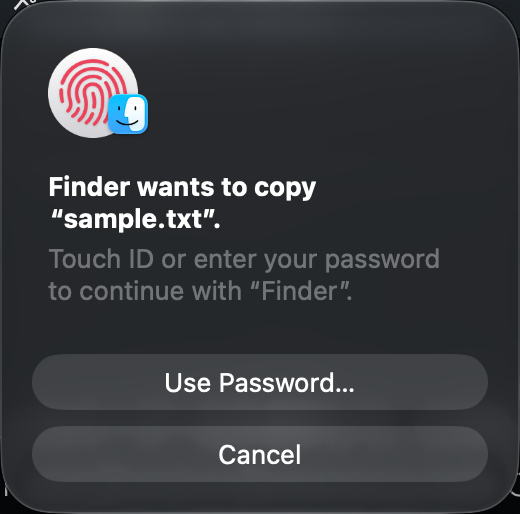
この記事は、Appleシリコン(M1以降)の現行 macOS 向けだ。確認の前提は macOS 27 系で、Sonoma 14、Sequoia 15、Tahoe 26 でも切り分けは同じだ。ダイアログは「”Finder”が変更を加えようとしています」で、承認はパスワードか Touch ID だ。
画面は macOS 27.2 の英語表示だ。括弧内が、日本語環境での名称だ。
Written in 2014 Instructions for OS Xは、当時の復旧画面でホームフォルダの ACL をまとめて戻すものだった。今の Mac にはその画面がなく、ホーム全体への chown -R や chmod -R -N はログインやアプリを壊すことがある。あちらのコマンドは実行しない。
What is this dialog?
Finder が、今のユーザーだけでは書き換えられない場所を変更しようとしたときに出る。権限が壊れているとは限らない。/Applications へアプリを入れるときなど、管理者の承認として出るのが正常な場合もある。
直すときは、出たタイミングで原因を分ける。ホームフォルダ全体は触らない。
- This only appears when copying, moving, or renaming specific folders or files.
- It only appears when you put it in the trash can.
- This appears in sync folders on external drives, NAS, and cloud storage.
- The application folder and other locations close to the system are being changed.
- It keeps popping up in the foreground even though I haven't touched the file.
1. Only specific folders are asked about.
そのフォルダの所有者か、ロックがずれていることが多い。sudo で作ったファイルや、別のアカウントからコピーしたデータで起きる。
① Select the item in Finder, then go to File → Get Info (Command + I).
② If "General" "Lock" is turned on, turn it off.
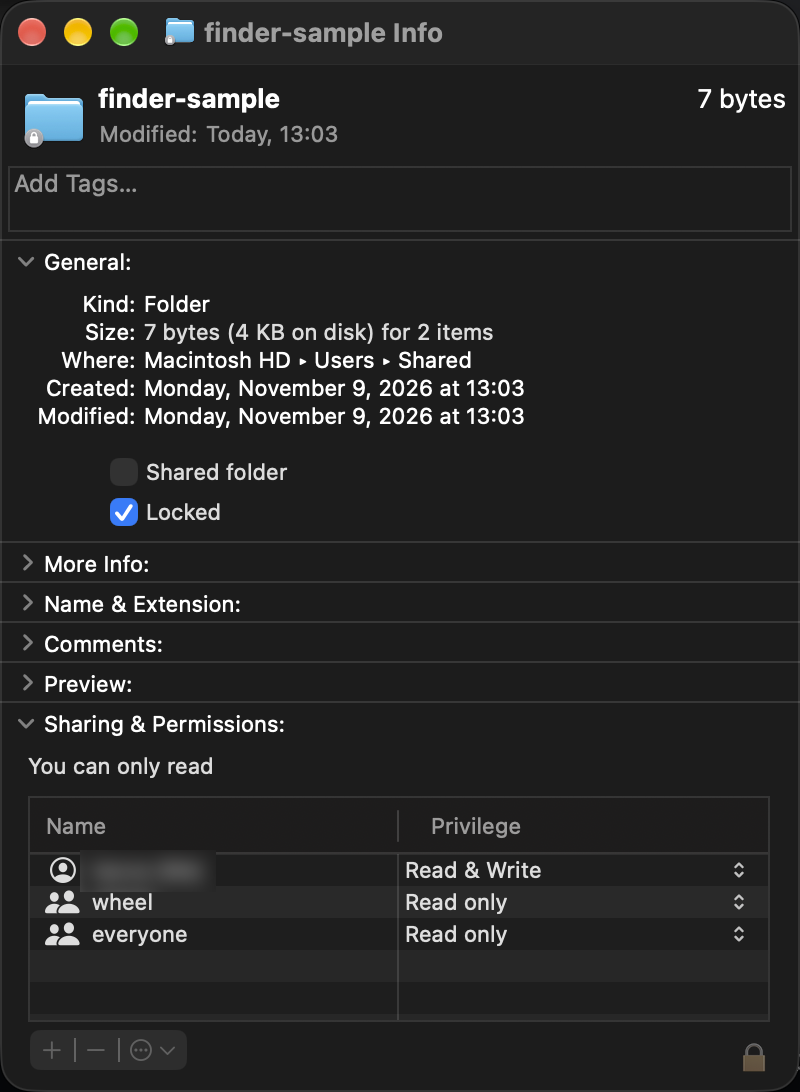
③「共有とアクセス権」を見る。自分の権限が「読み/書き」なら、このフォルダ自体の所有者は問題になっていない。次のターミナル確認へ進む。
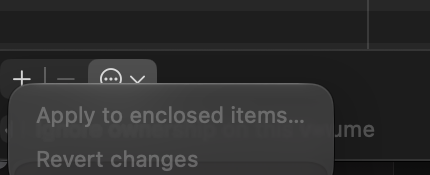
④ 自分の行が「読み出しのみ」や「カスタム」のときは、右下の鍵を外し、自分を「読み/書き」にする。フォルダなら、歯車メニューの「内包している項目に適用」を実行する。
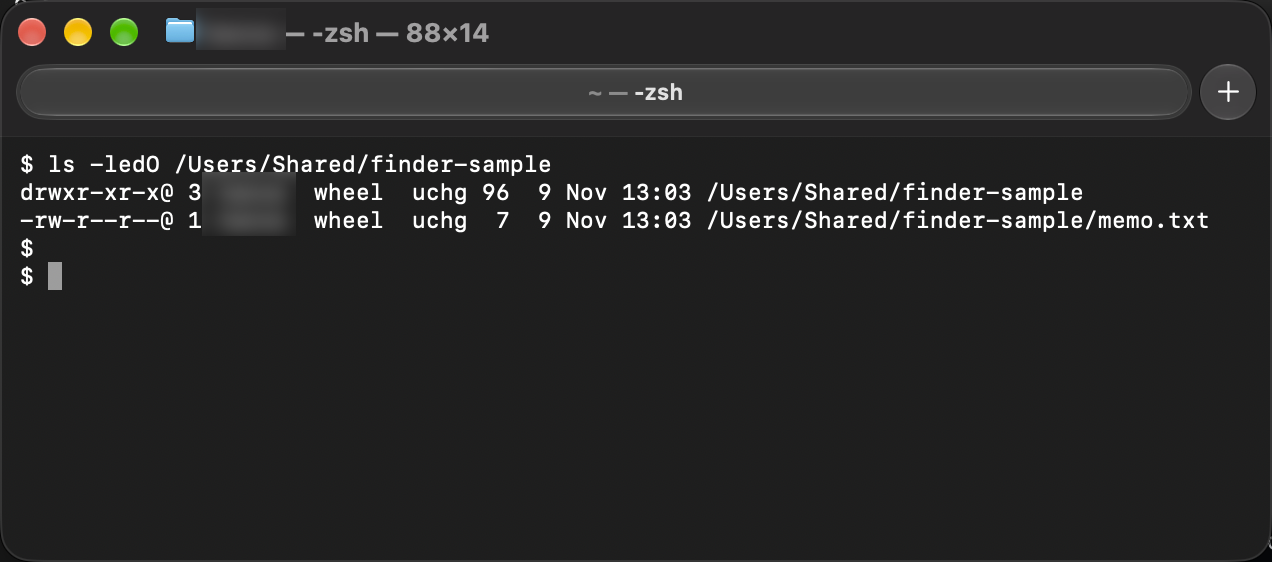
情報を見るで直らないときは、ターミナルでそのパスだけを見る。パスはフォルダをターミナルへドラッグすると入る。
$ ls -ledO "/対象のパス"The owner's name on the left,uchg や schg のフラグ、2行目以降の ACL を見る。uchg は Finder のロックと同じだ。所有者を戻すコマンドは、ダイアログの出たフォルダだけにかける。
$ sudo chown -R "$(whoami):staff" "/対象のパス"
$ chmod -R u+rwX "/対象のパス"
$ chflags -R nouchg "/対象のパス"
/対象のパス は、デスクトップ上の問題のフォルダなどに読み替える。次の場所へこの3行を実行するのは避ける。
- The entire home folder (
~や/Users/自分の名前) /、/System、/Applications- Photo library, email data,
.appMain unit
ls -le で、問題のファイル1つにだけ ACL が付いているときは、その1つに限って外す。ホーム全体にはかけない。
$ chmod -N "/対象のファイル"schg が付いているファイルは、システムが保護している。SIP を切ってまでフラグを外す対象にはしない。
2. Only when putting it in the trash can.
捨てようとしたファイルの所有者が root のときは、Finder が削除の承認を求めてくる。パスワードを入れると消えるなら、そのファイルに限った正常な動作だ。
自分のファイルなら毎回聞かれる場合は、ゴミ箱フォルダ側を見る。
$ ls -ledO ~/.TrashThe owner is themselves, and the authority drwx------ なら形は正常だ。所有者だけが違うときは、中身を消さずに戻す。
$ sudo chown "$(whoami):staff" ~/.Trash
$ chmod 700 ~/.Trash
それでも続くときは、ゴミ箱の中身を捨てて作り直す。ゴミ箱に残しているファイルも消える。
$ sudo rm -rf ~/.Trash
$ mkdir ~/.Trash
$ chmod 700 ~/.Trash
$ killall Finder
3. External disk and sync folder
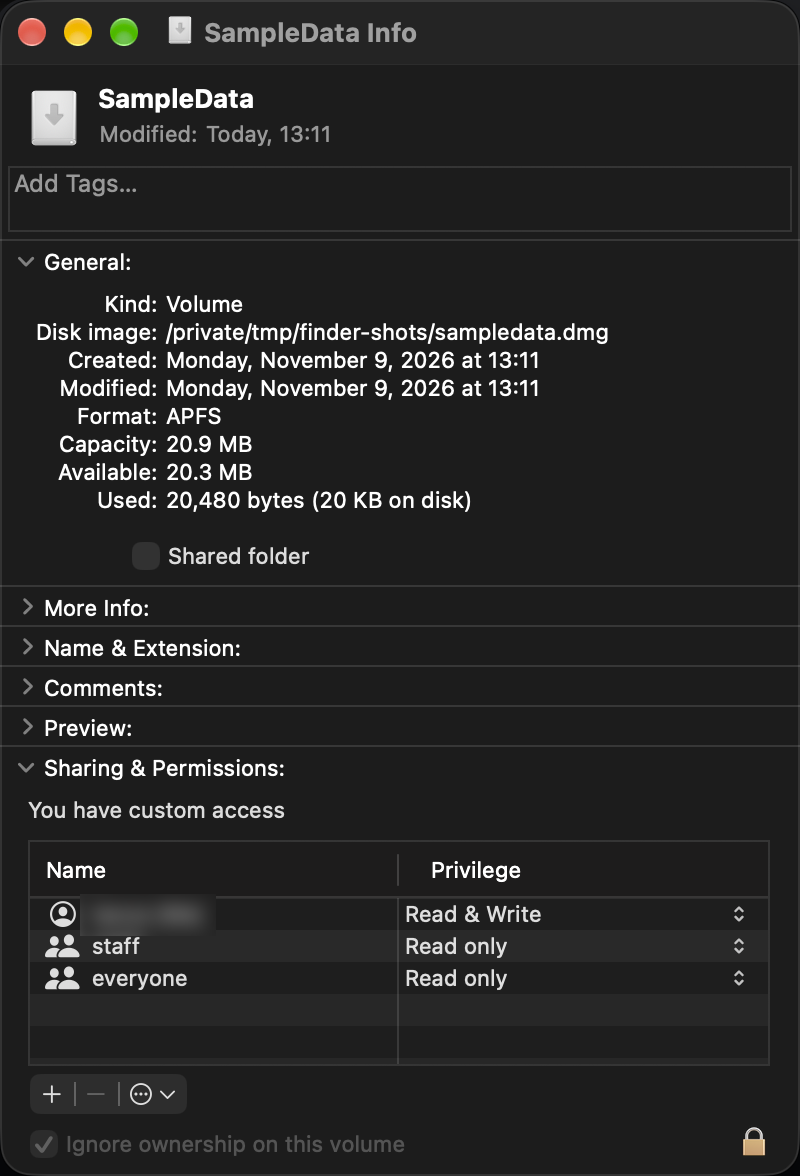
External drives are located directly below the volume control. .Trashes や所有権で同じダイアログになる。データ用のディスクなら、Finder でそのディスクを選び、情報を見る → 鍵を外す →「このボリューム上の所有権を無視」をオンにする。Time Machine 用のディスクではオンにしない。
同期クライアントが裏でファイルを書き換えていることもある。Tahoe 26.1 では、操作していないのに約20分おきへダイアログが出て、Synology Drive を入れ直したら止まった例がある。Dropbox、Google Drive、OneDrive も同じ確認ができる。クライアントを終了してダイアログが止まるなら、権限ではなくアプリ側だ。
4. The password appears and the operation is normal.
app /Applications Move to/Library を変更する、ほかのユーザーのフォルダを触る。これらは管理者の承認が要るので、ダイアログが出る。ACL をリセットして消すものではない。
5. It keeps appearing even though I'm not touching it.
ファイル操作と無関係に前面へ出てくるときは、権限を書き換える前に、起動状態と常駐アプリを切り分ける。macOS のアップデート直後に始まった場合も、こちらが先だ。
① 一度再起動する。数週間起動したままの Mac では、認証ダイアログだけが連発して、再起動で収まることがある。
② In Safe Mode on Apple Silicon, view the system with login items disabled.
- System shutdown
- Press and hold the power button until it says "Loading startup options".
- Choose a boot disk
- Hold down the Shift key and click "Continue in Safe Mode".
- Log in and check the "Safe Boot" option in the menu bar.
セーフモードで止まったら、通常起動に戻してから、システム設定 → 一般 → ログイン項目のアプリを半分ずつ外す。
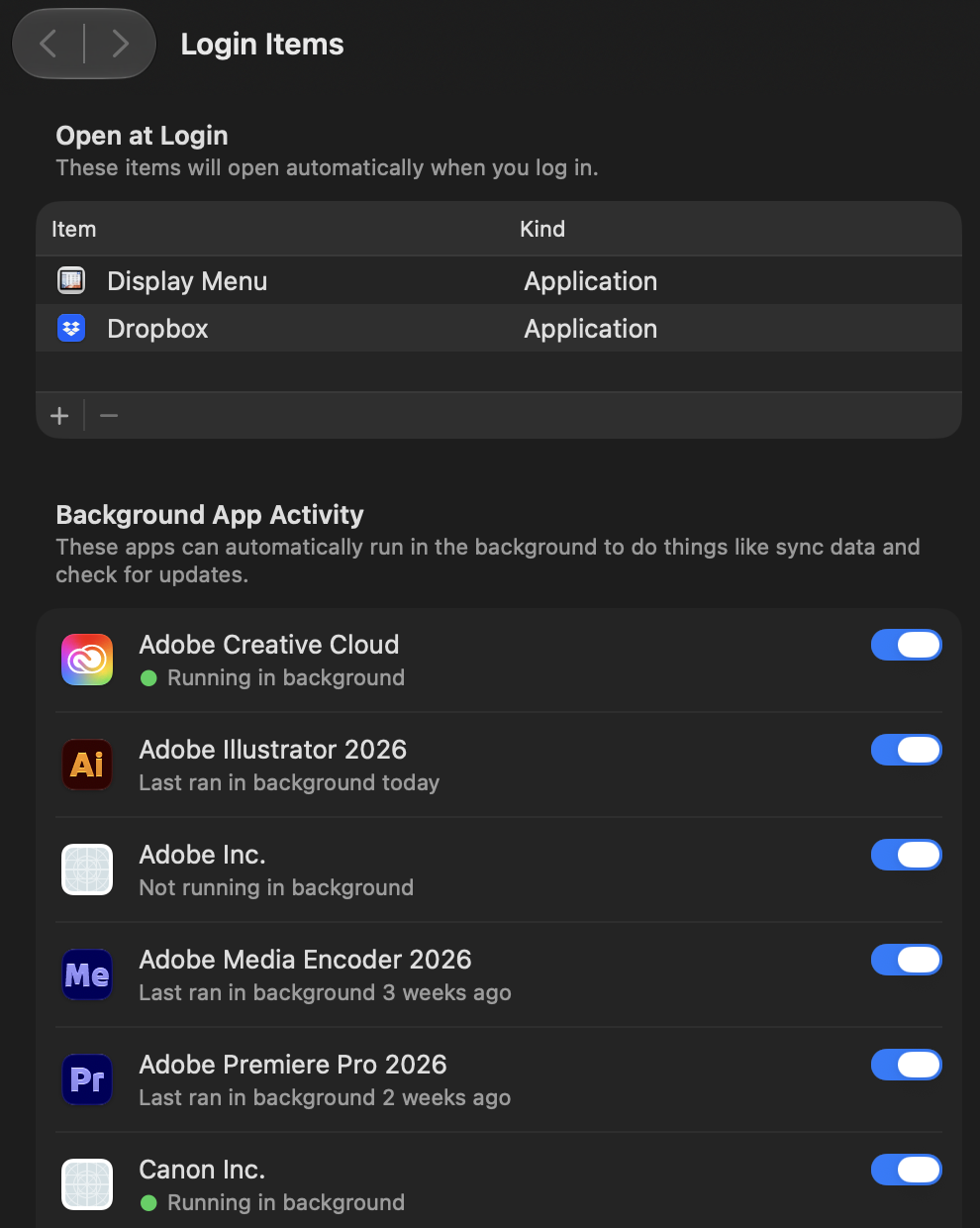
③ ユーザーを追加して、同じ操作をする。新しいユーザーで出ないなら、原因は今のアカウントの中(そのフォルダの権限、ログイン項目、同期クライアント)だ。新しいユーザーでも出るなら、アカウントの ACL をいじる前に、外付けを外して再起動し、ソフトウェアアップデートを確認する。
Things you don't do in the current macOS
- To the entire home folder
chown -R、chmod -R -N、chmod -R 777 - 起動時の Command + R。これは Intel Mac の古い入り方で、Appleシリコンは電源ボタン長押しだ
- Recovery environment
repairHomePermissions。Tahoe 26.1 時点で、実行するとホーム内の所有者からはずれ、フォルダを開けなくなる例が報告されている
The records for 2014 are Another articleに残してある。手順の対象は、当時の OS X だ。